SIDE PROJECT · NOVEMBER 2026
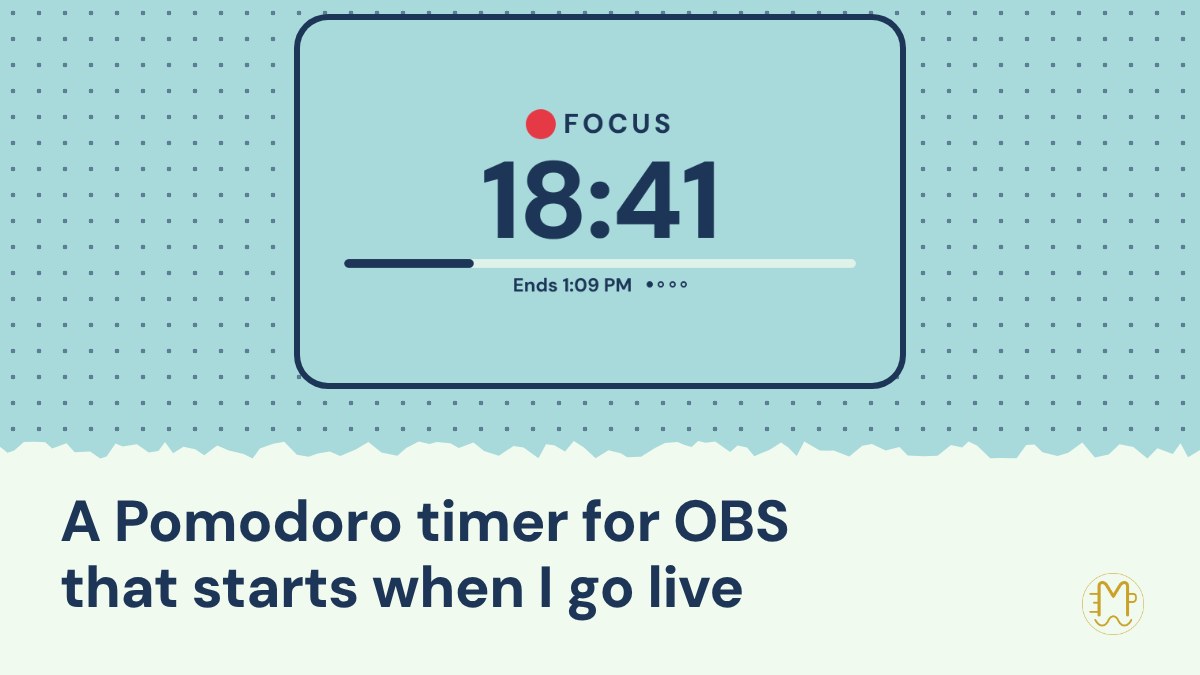
A Pomodoro timer for OBS that starts when I go live
I follow the Pomodoro method in theory. In practice I kept missing the break half, and my focus and productivity paid for it. So I put the timer somewhere I can't ignore it: on screen, on stream.
Download the timer (zip) Try it right here
Try it
This is the real timer, set to a 15-second focus and 9-second breaks so you can watch it switch. Hover over it and press Start. In OBS the lengths are 25, 5 and 15 minutes.
What it does
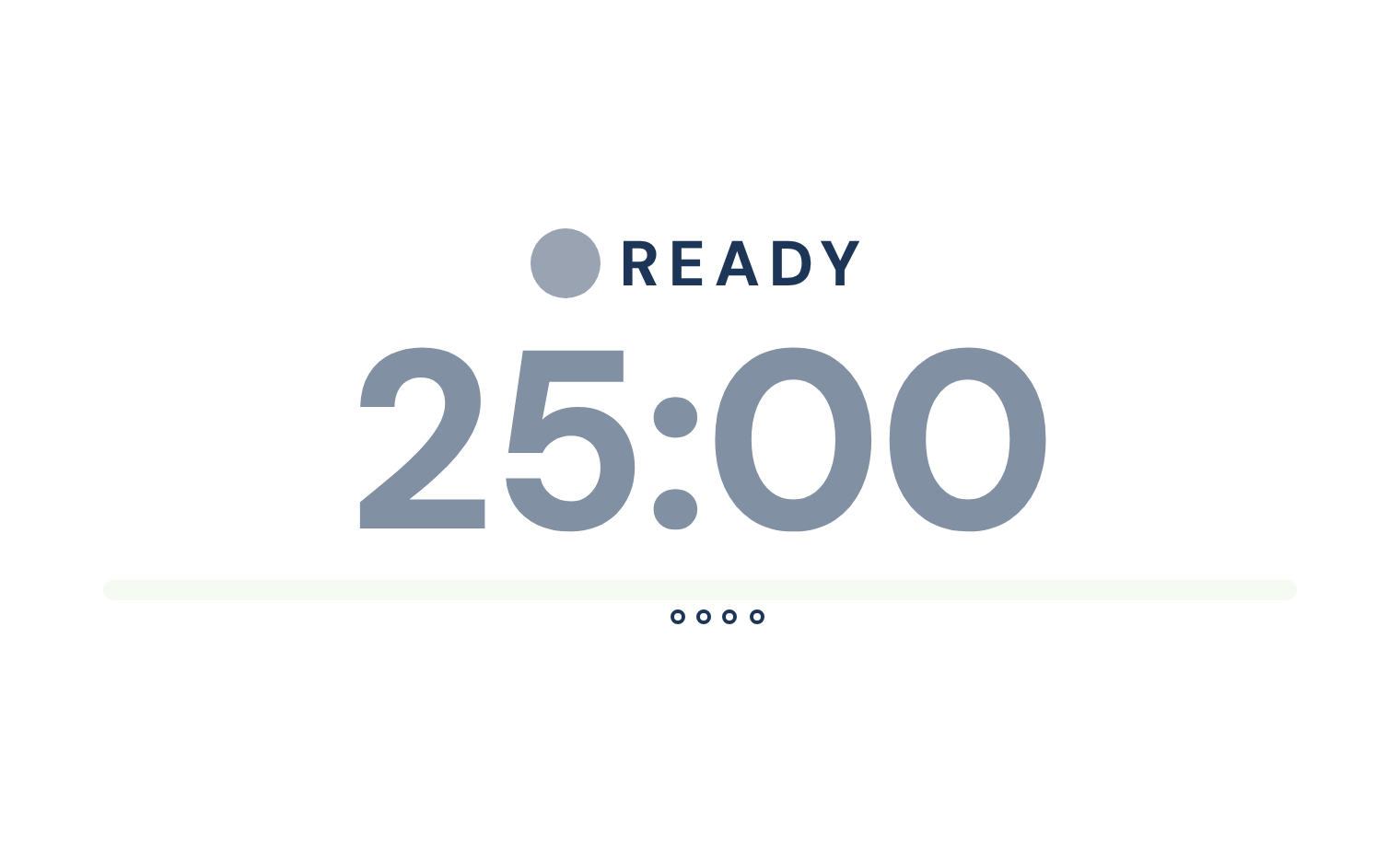
Ready. Waits at 25:00 until you start it, or until you press Start Streaming or Start Recording in OBS.
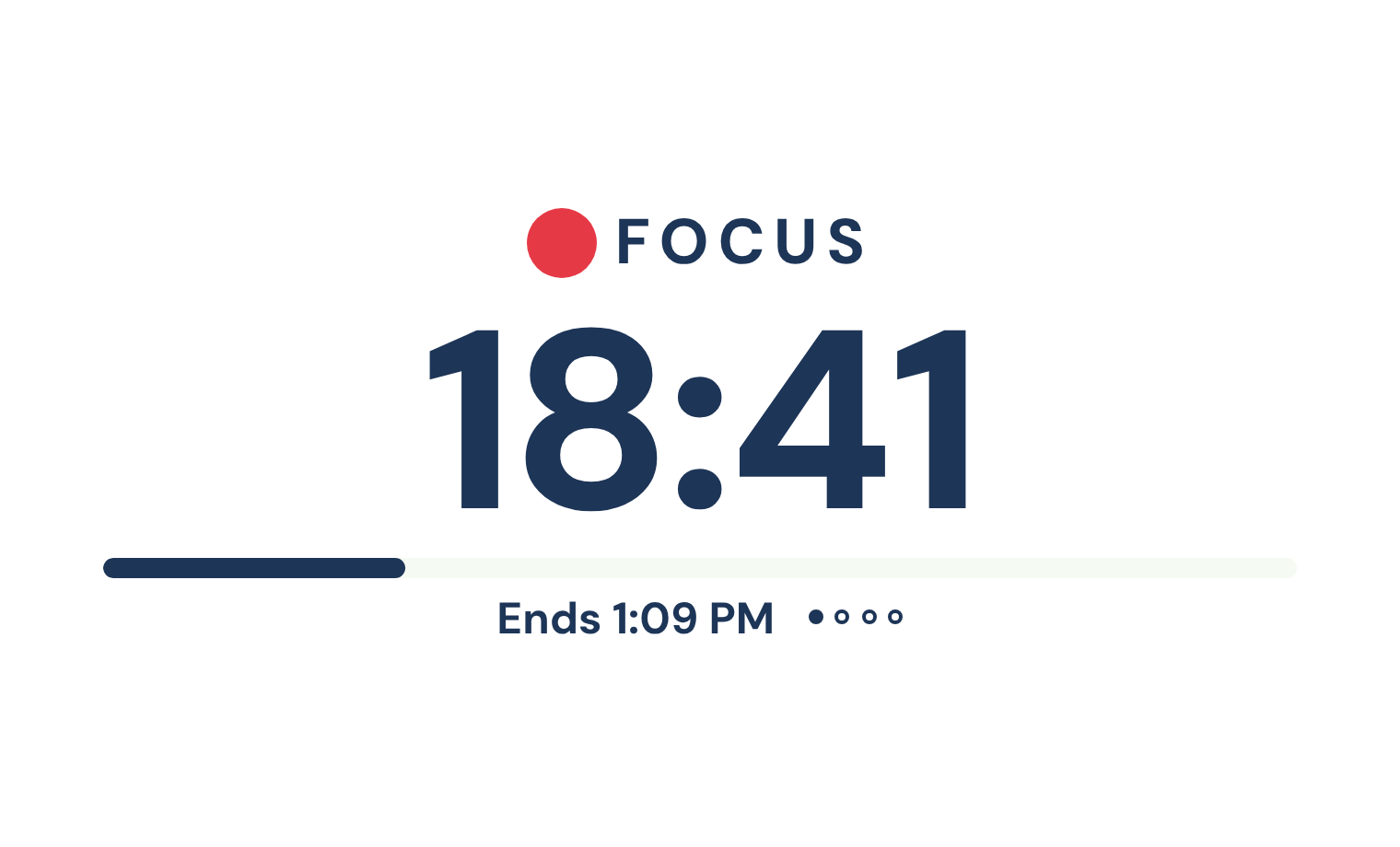
Focus. A progress bar, the clock time the block ends, and a dot for each finished session.
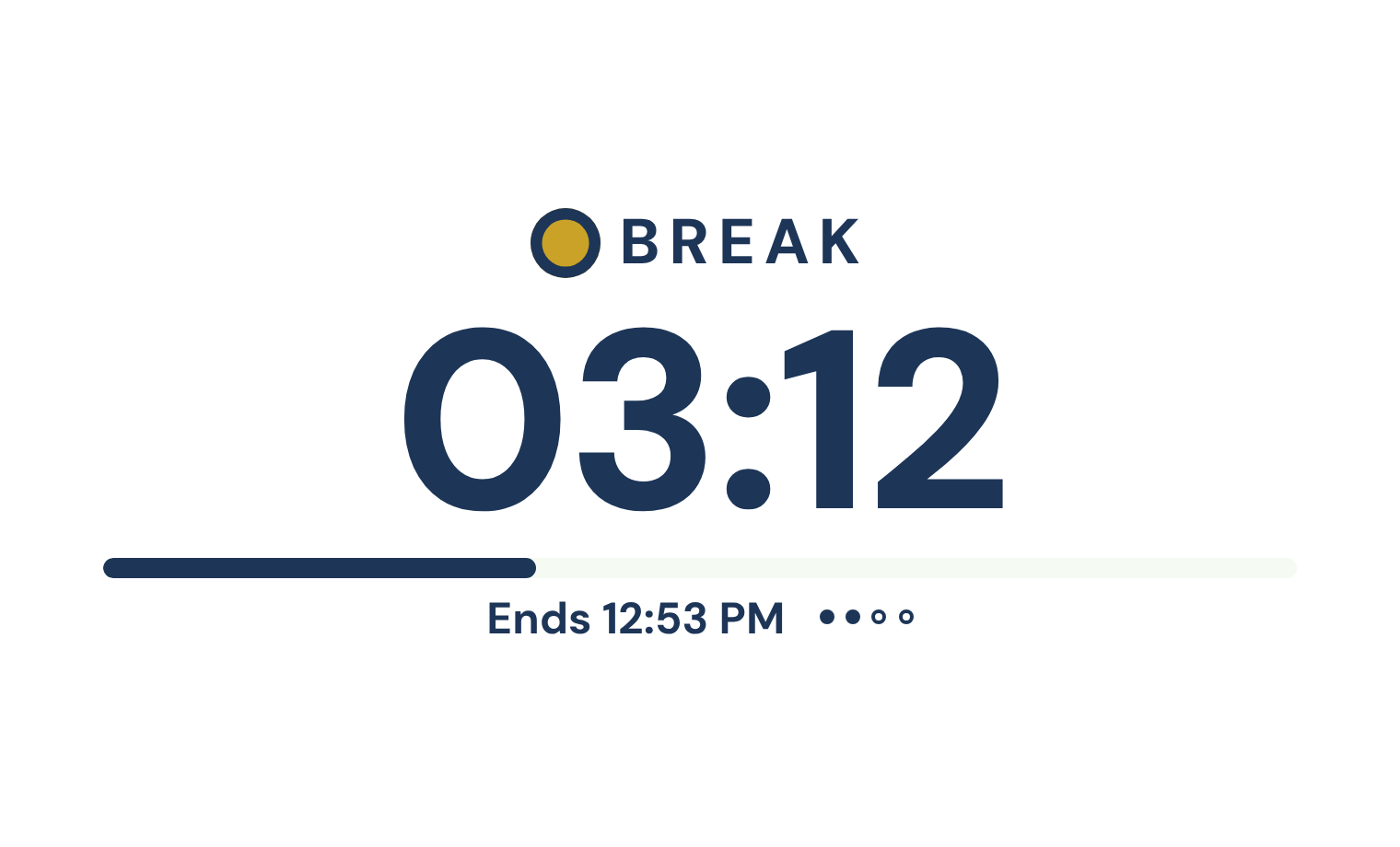
Break. A chime starts it, a different chime ends it. After four sessions you get the long one.
How I got here
- I looked for a free OBS Pomodoro timer and installed a Lua script. Getting it to load took some troubleshooting of its own.
- It froze OBS. During a 2-minute test, the countdown reached 0:01 and OBS stopped responding. Restarting OBS froze it again straight away.
- I gave Claude hands-on access to OBS and let it test one piece at a time. OBS's own log showed no error, which is what makes a freeze like this so annoying. The common factor was the script together with the scene switch it triggered at the end of a block. I can't tell you which half is guilty, only that I no longer need either.
- The chimes never played anyway. The script's sounds came from hidden media sources, so nothing reached my headset.
- So we stopped patching and built something smaller: one HTML file that OBS shows as a Browser source. No script inside OBS, no scene switching.
Why it is built this way
- One file, no plugin. A Browser source can't take OBS down with it the way a script can.
- It tells time from the clock, not from counting. OBS slows down hidden sources, so the timer stores when the block ends and works out what is left each time it draws.
- It remembers. State is saved in the source, so restarting OBS puts you back where you were. If OBS was closed long past the end of a block, it skips the chime instead of blasting it late.
- The chimes go through OBS audio. Turn on audio monitoring and you hear them in your headset, and viewers hear them too if you want that.
- It starts itself. OBS tells the page when you start streaming or recording, and a ready timer begins its first focus block.
- Reset asks twice. I hit Reset by accident during testing, so now it needs two presses within three seconds.
Set it up in OBS
- Download the zip above and unzip it into a folder you won't move or delete.
- In OBS, under Sources, click + and choose Browser. Name it anything.
- Check Local file, click Browse, and pick
molly-pomodoro-timer.html. - Set Width to 380 and Height to 230.
- Check Control audio via OBS.
- Set Page permissions to Read access to OBS status information. This is what lets it start when you go live.
- Click OK. Then in the Audio Mixer, click the gear icon, choose Advanced Audio Properties, and set the source to Monitor and Output.
Controls: right-click the source and choose Interact. Hover to see Start, Skip and Reset. Inside that window, Space starts and pauses, and S skips. OBS hotkeys can't press buttons inside a Browser source, which is why there is no global hotkey.
Different lengths: open the HTML file in Notepad and change the numbers in the block labelled CONFIG. Defaults are 25 focus, 5 break, 15 long break, long break after 4 sessions.
Your own sounds: the two chimes in the zip are plain tones I generated for this page. Replace chime-break.wav and chime-focus.wav with any sounds you have the rights to use.
What I haven't proven yet
I tested every phase change with short timers in a headless browser, and I skipped through the phases inside OBS. The first uninterrupted 25-minute block on a live stream is still ahead of me. I would rather say that here than have you find it out.
The Pomodoro Technique is Francesco Cirillo's. Built with Claude, tested on OBS Studio 33 on Windows.
Molly Purcell-Weatherwalks
mollypw.com